# Get Started
{% hint style="info" %}
**Notice** \
This guide guides you through the Ovision sign up and authentication process. If there is a problem during the sign up process, please contact the customer center.
{% endhint %}
## Access the Sign in page
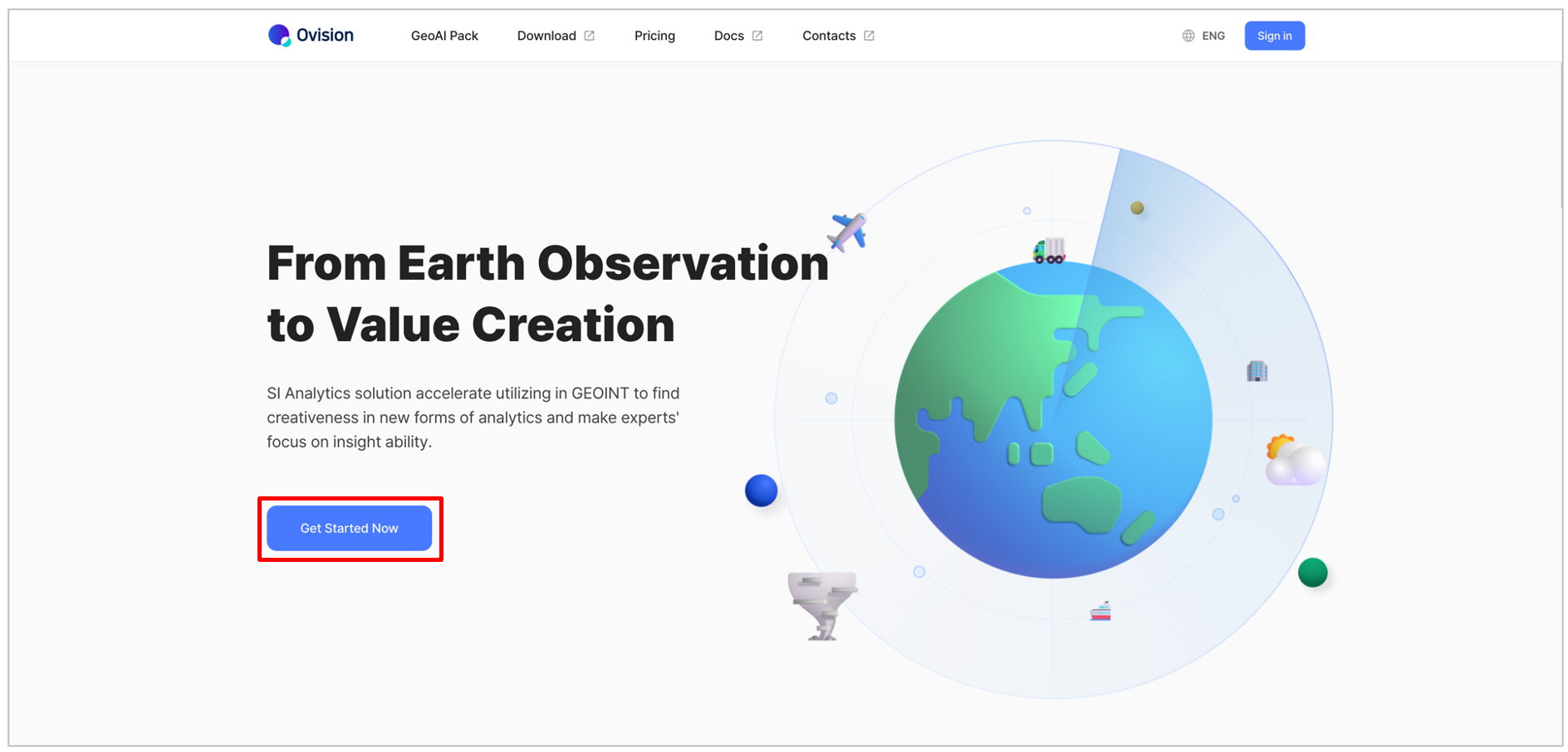
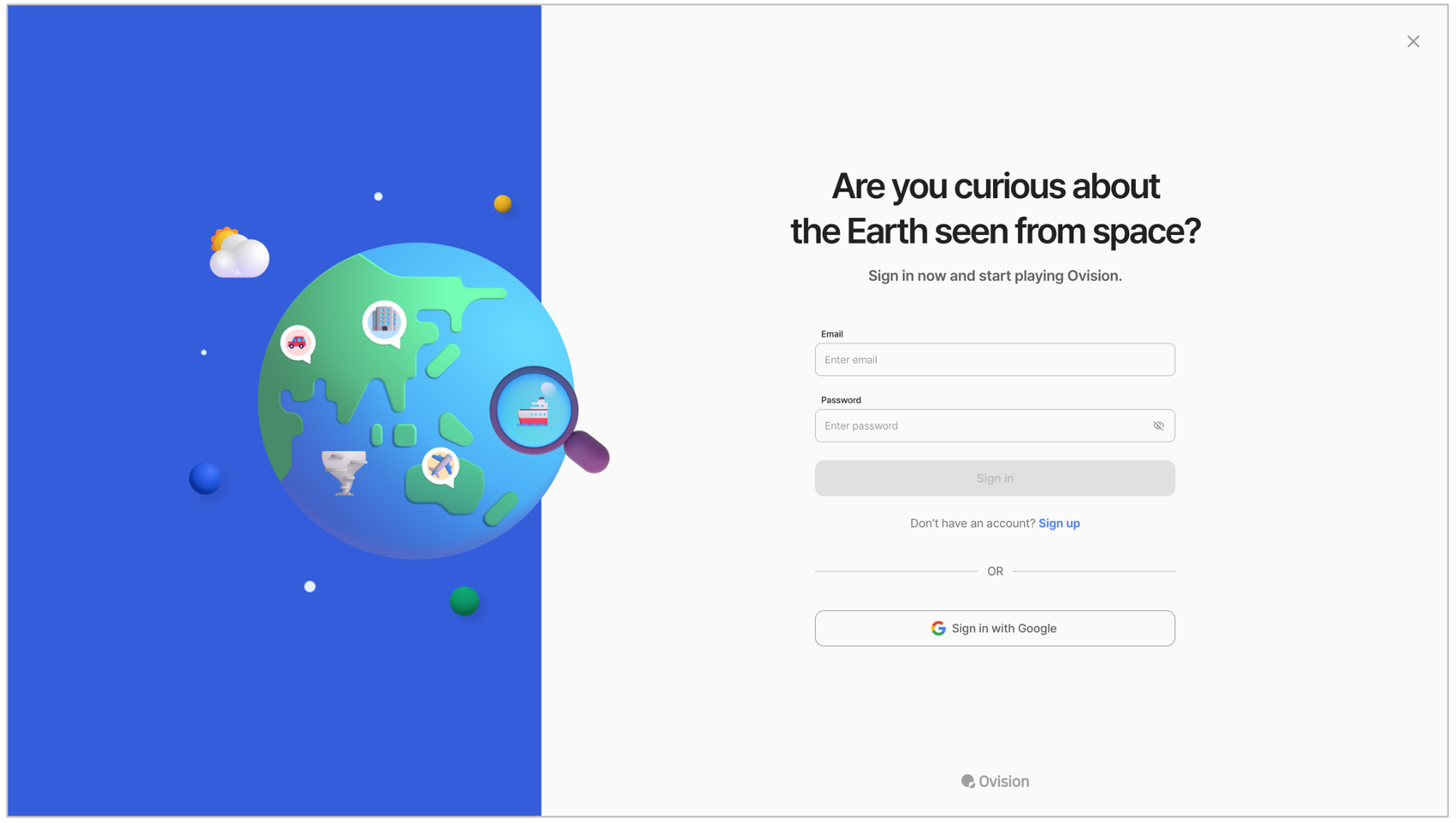
On the [Ovision main page](https://ovision.ai/), click 'Get Started Now' to access the [sign in page](https://ovision.ai/sign-in).
Sign In page
## Sign up and Sign in
{% hint style="warning" %}
**Caution** \
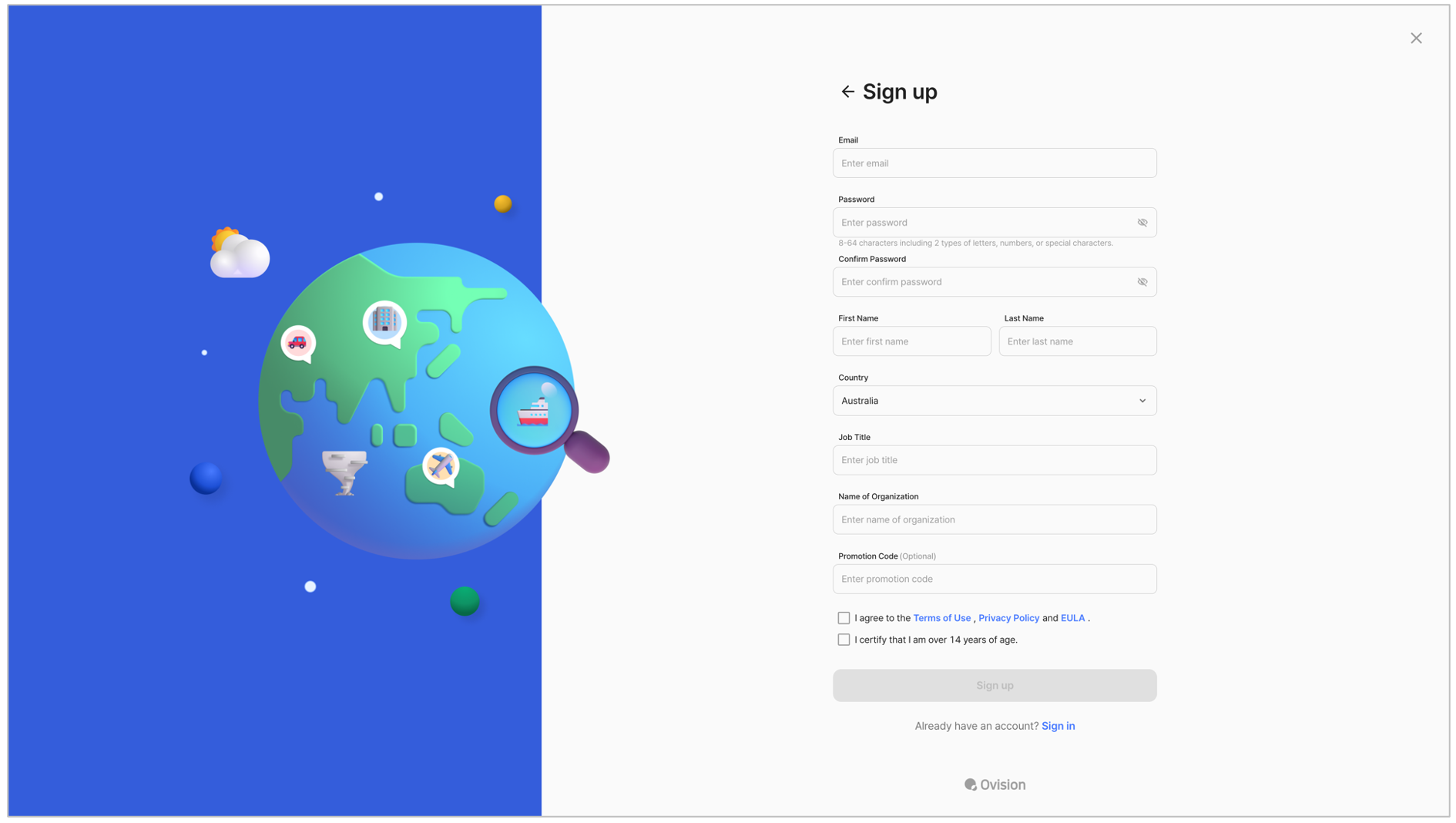
Promotion codes can only be entered upon sign up. You can't enter a promotion code after you create an account, so be careful!
{% endhint %}
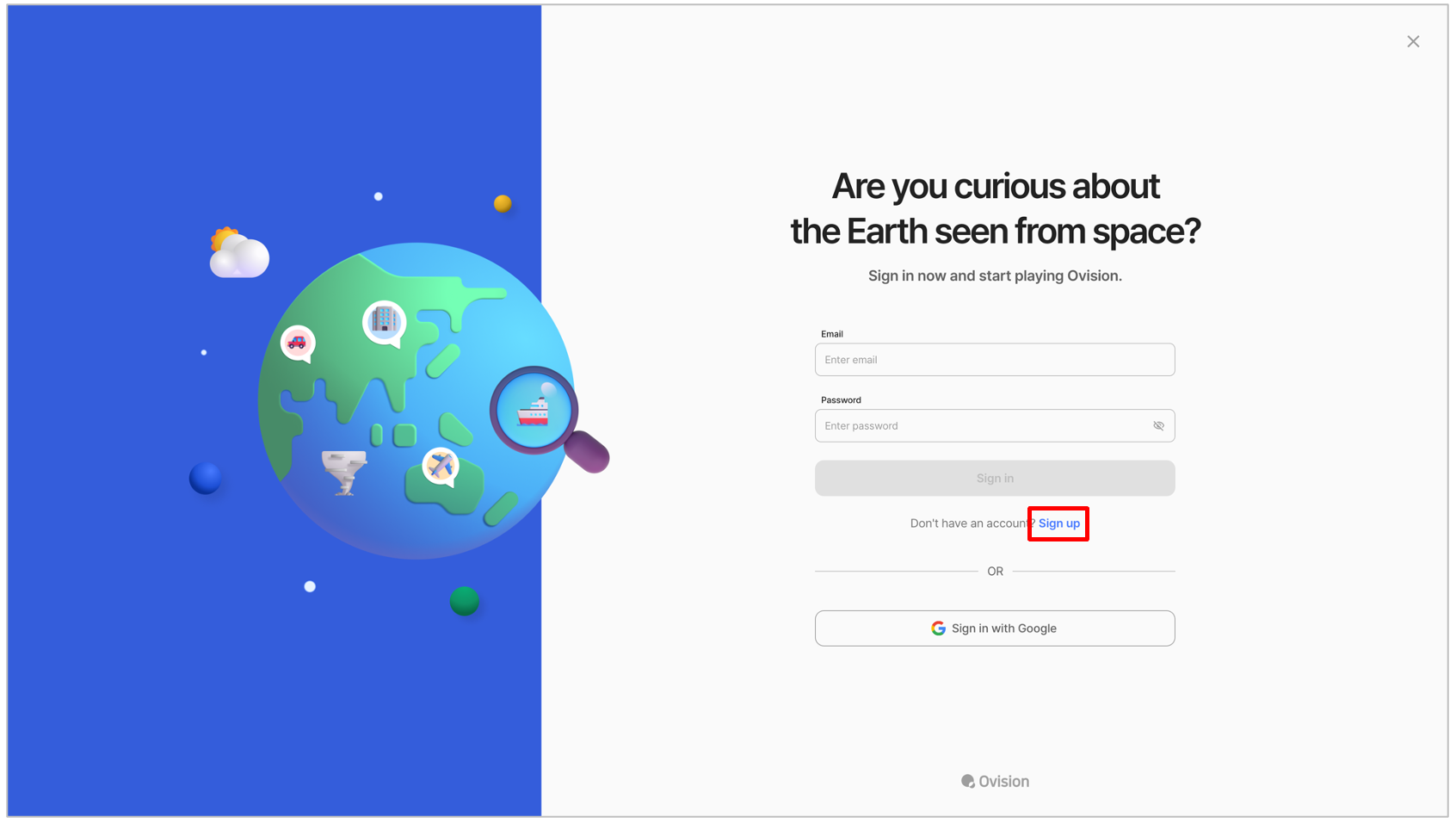
1. Click the 'Sign up' button.
2. Enter information for sign up and click the 'Sign up' button.
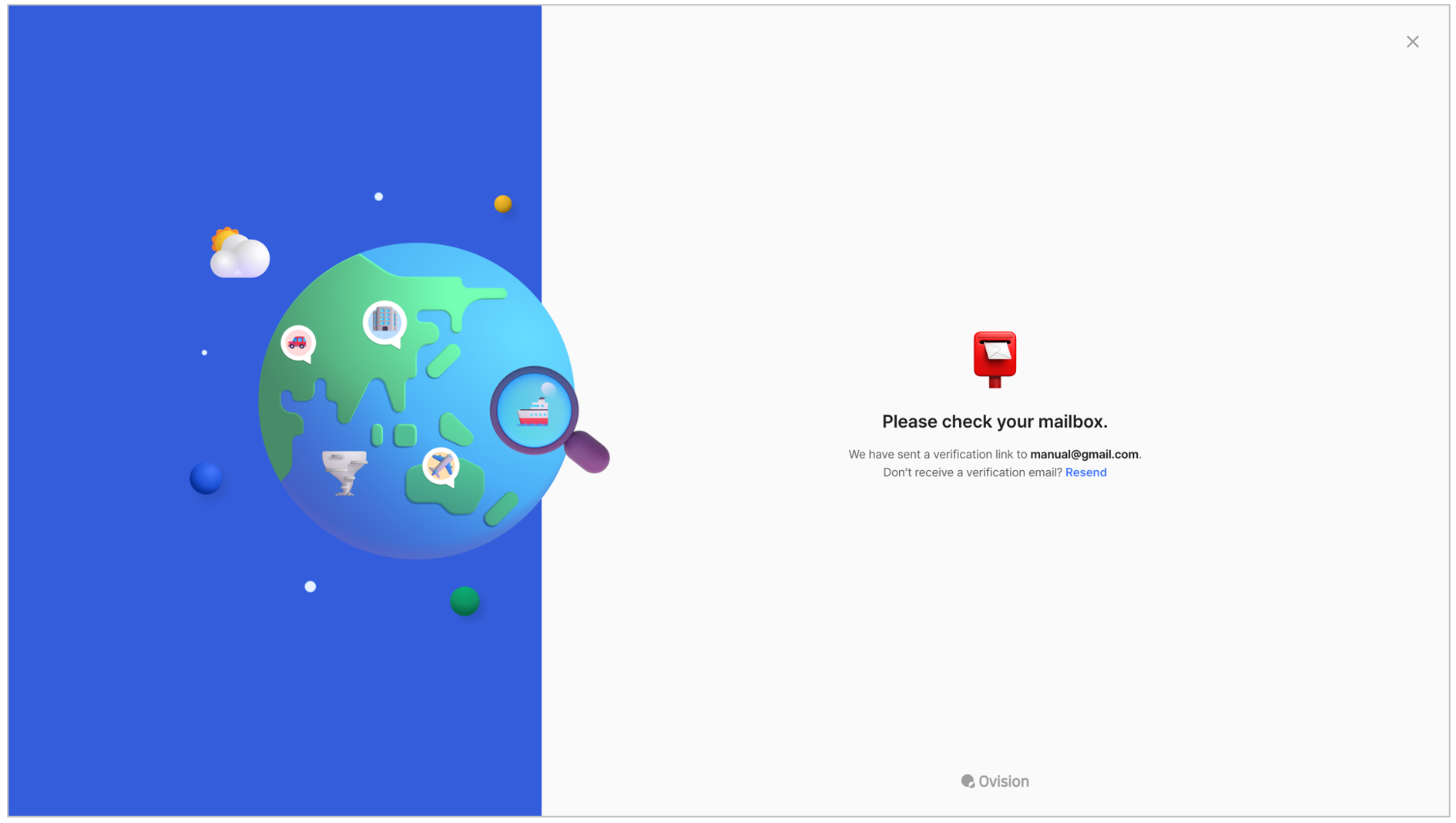
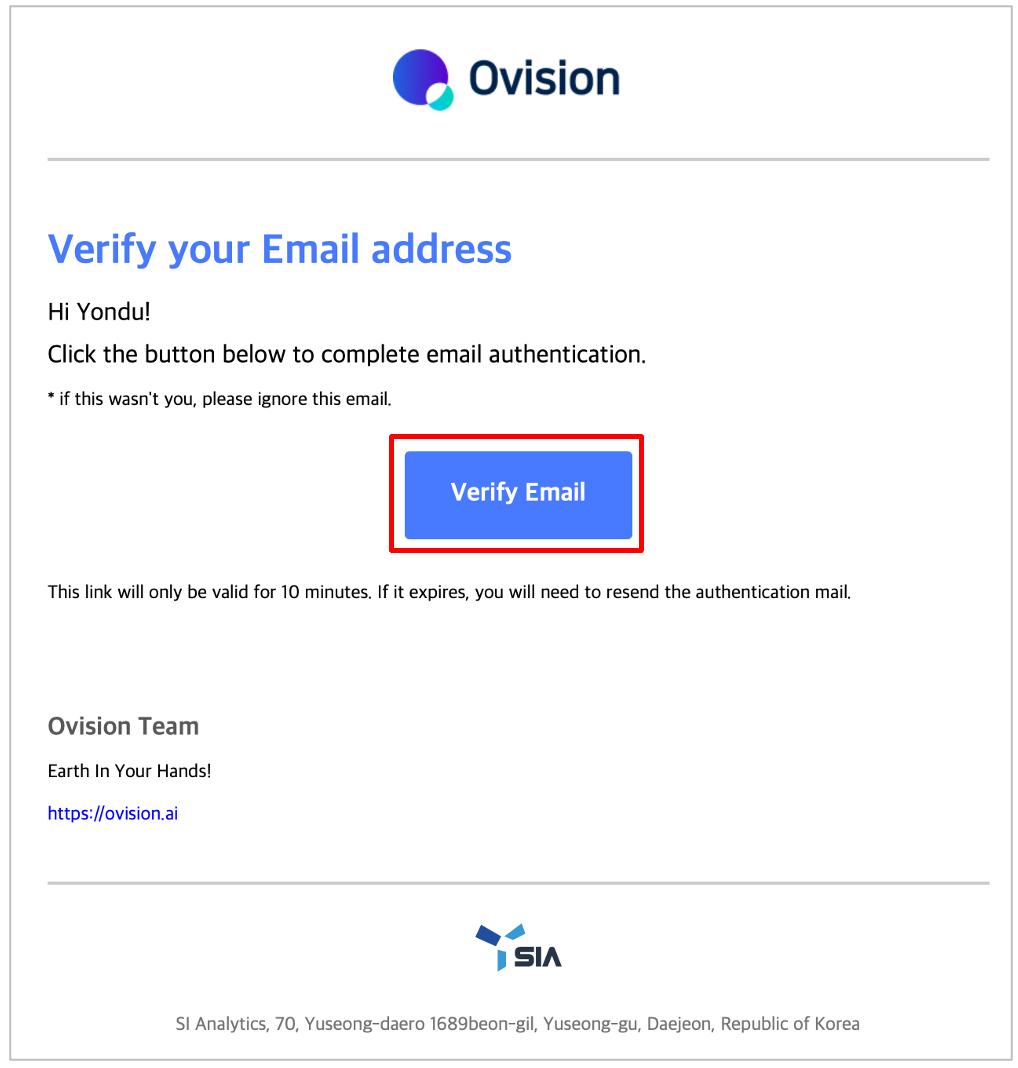
3. Check the authentication mail in the mailbox sent to the email you entered when sign up as a member.
4. Click the 'Verify Email' button in the authentication mail to complete email authentication.
5. After verifying that your email authentication and sign up have been completed, sign in by entering the account information you created.