# Credit Order
{% hint style="info" %}
**Notice** \
If you don't have enough credit, you can charge your credit through the 'Credit Order' feature. Once a 'Credit Order' has been received, SIA will guide you through the process by phone or email.
{% endhint %}
## Settings
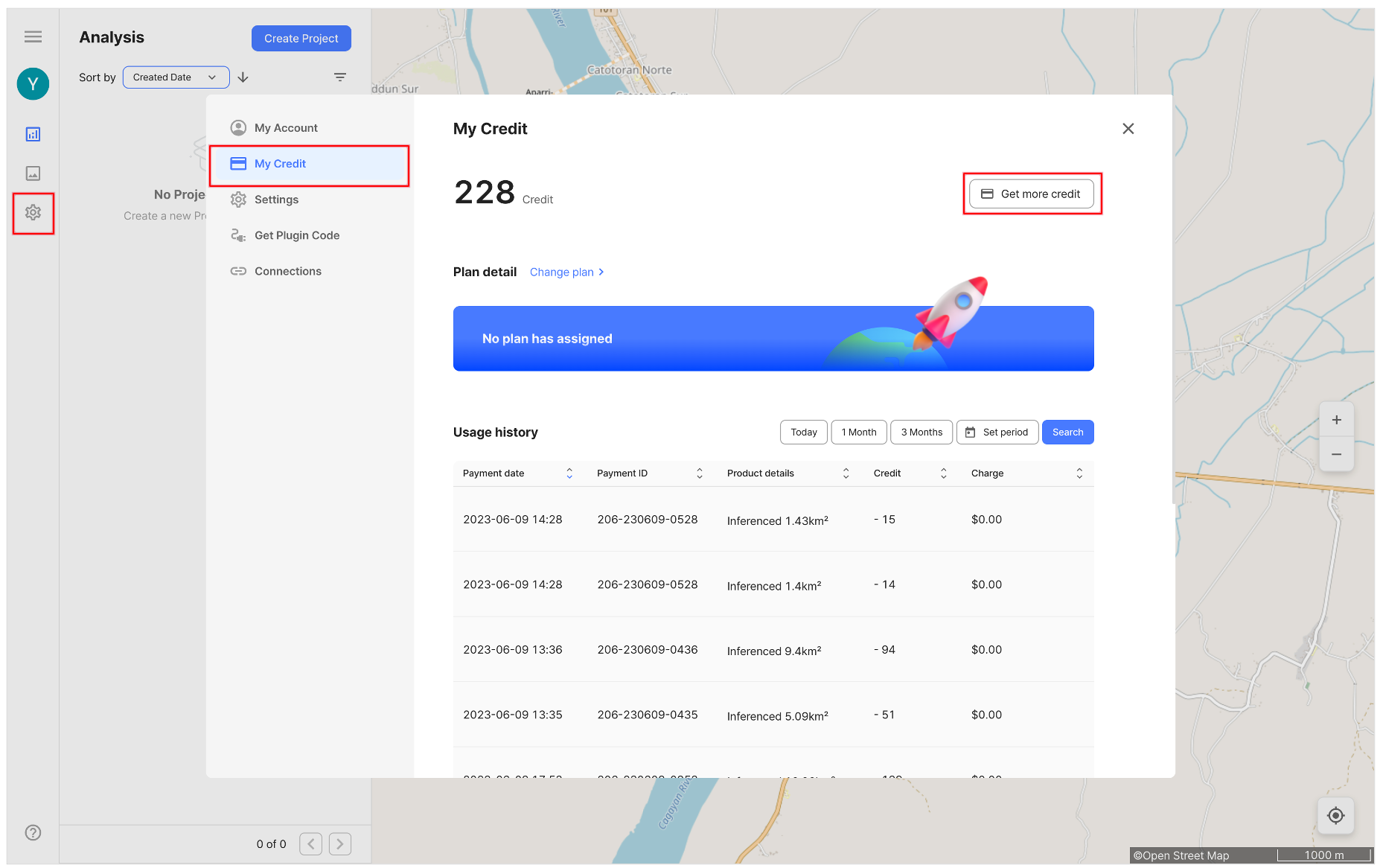
1. Click the \[Settings] menu.
2. Click the \[My Credit] menu.
3. Click the \[Get more credit] button.
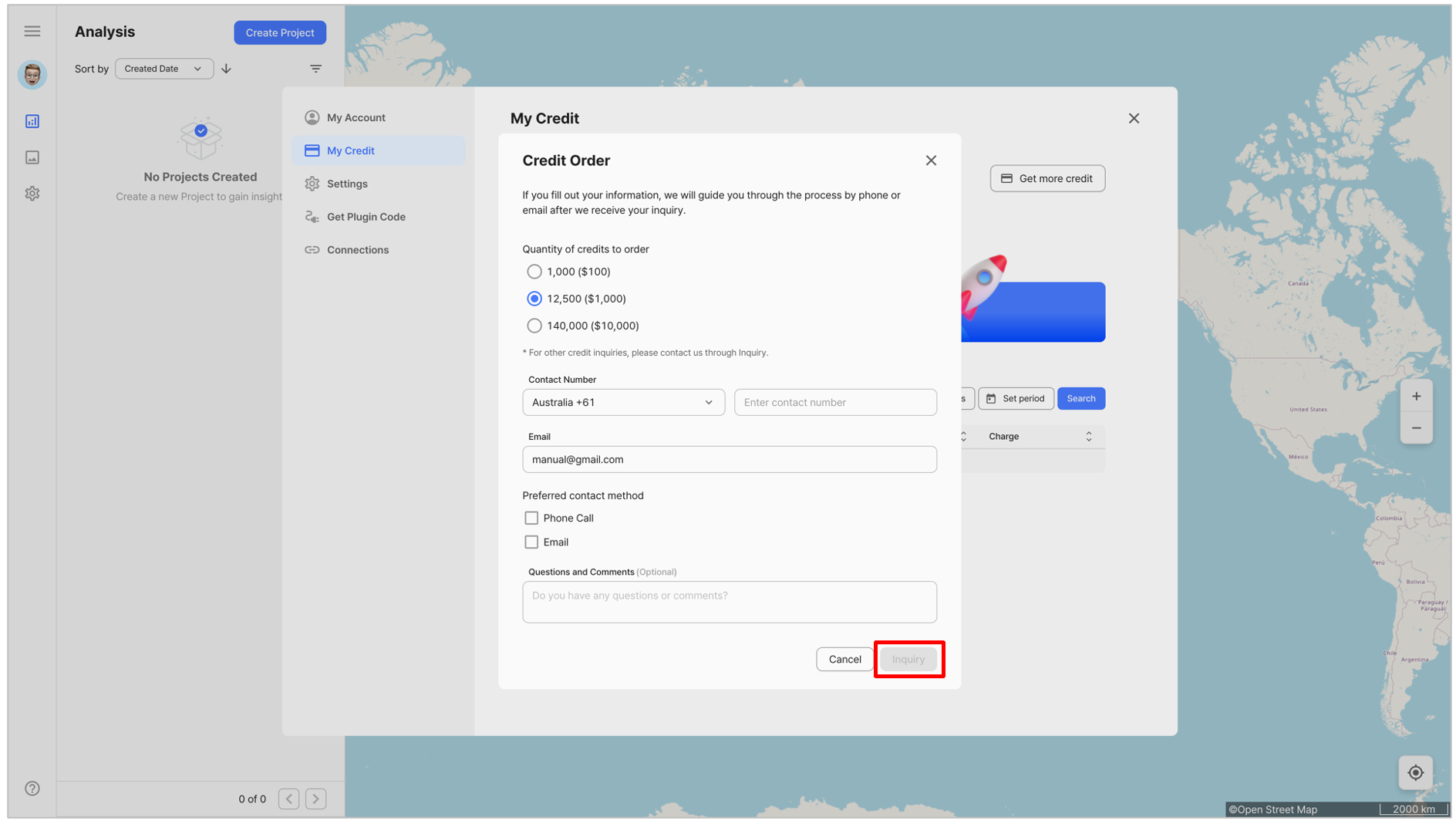
4. Enter the information in the credit order form and click the \[Inquiry] button.
## Main page
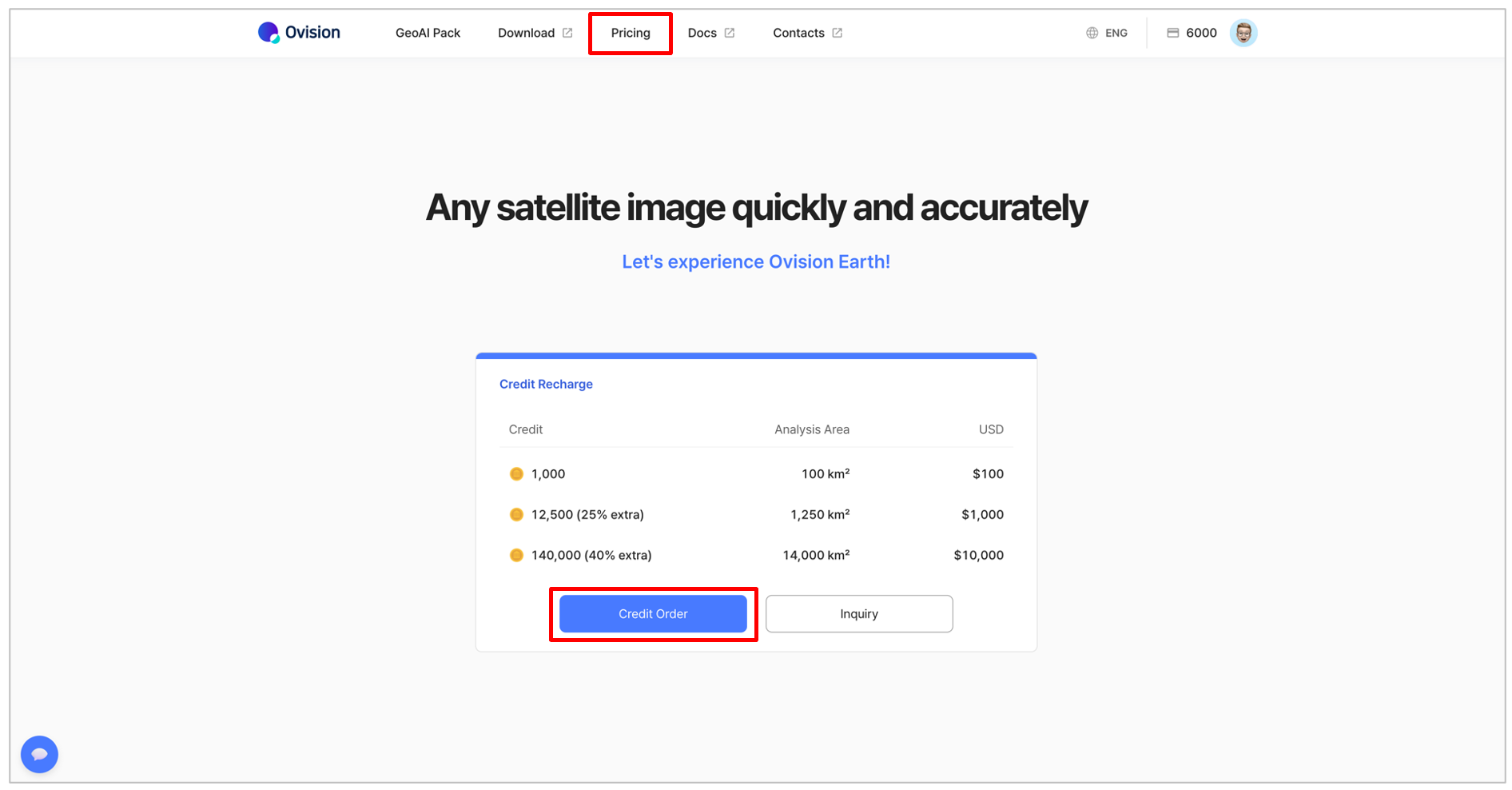
1. Access the Ovision main page.
2. Click the \[Pricing] menu, and then click the \[Credit Order] button.
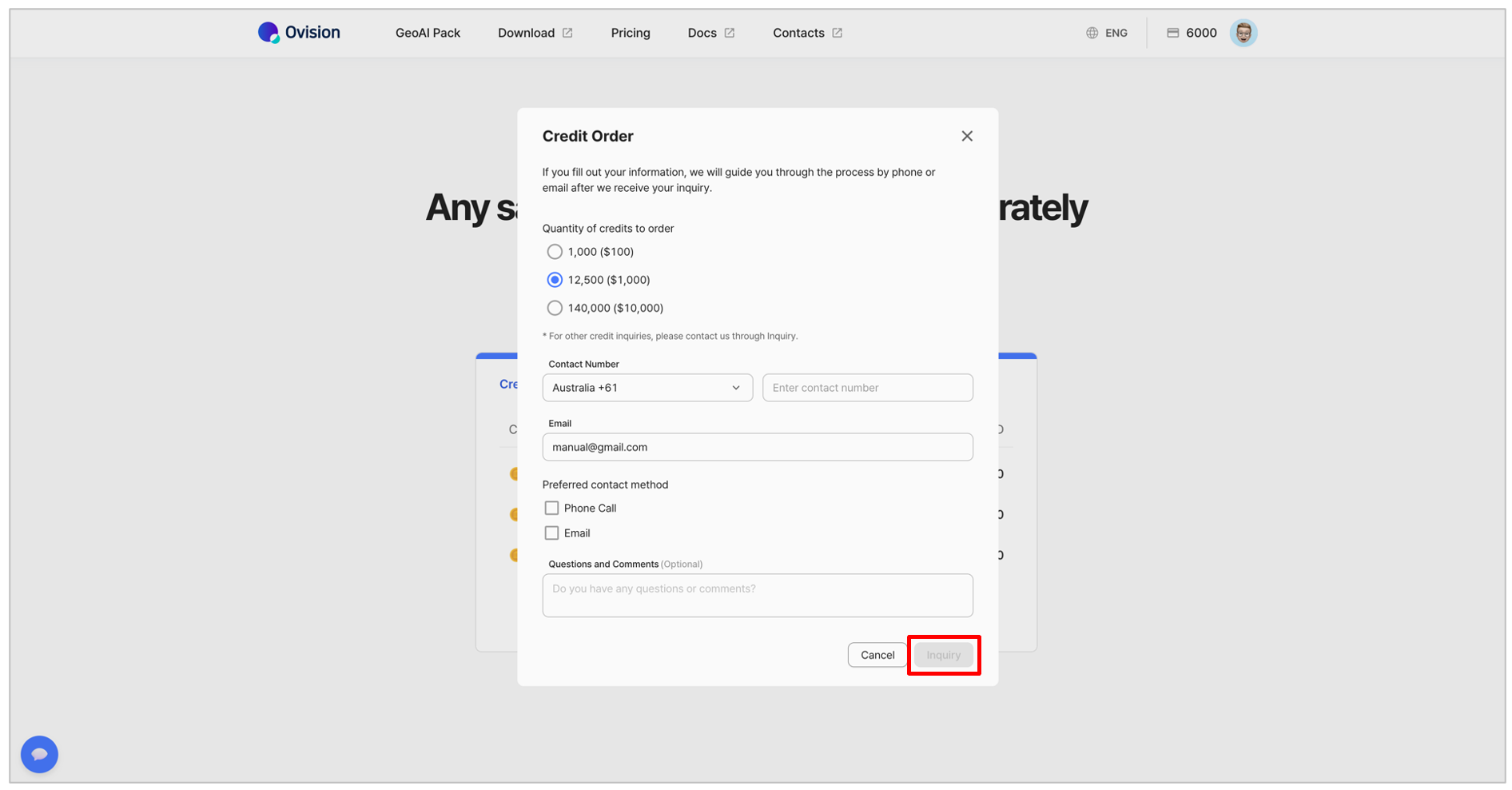
3. Enter the information in the credit order form and click the \[Inquiry] button.